Signing in to Talk AI
Talk AI uses your practice's AdvancedMD account to sign you in, the same username and password as your Patient Portal, so there's no new password to remember.
Staff: sign-in emails you a one-time code on each new browser. If you forget your password, ask a Talk AI admin to send you a temporary one.
For clients
Before your first sign-in (one time)
Talk AI can only connect to your records after you've given permission in the Patient Portal. You only do this once:
- Sign in to your Patient Portal as usual.
- Open the menu (☰) in the top right and choose Settings.
- Next to Third Party Access, press Edit Consent.
- Select Yes, then press Update Consent.
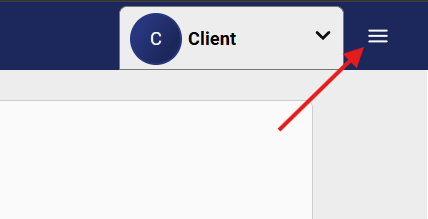
Signing in
- On the sign-in page, tap “I'm a client.” You'll be taken to AdvancedMD, our practice's secure medical records system.
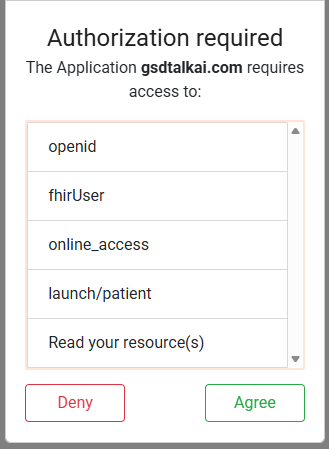
- AdvancedMD asks which permissions to authorize. Leave everything checked and tap Authorize. This lets Talk AI see your name and connect you to
your therapist. It never shares your Talk AI conversations with anyone.
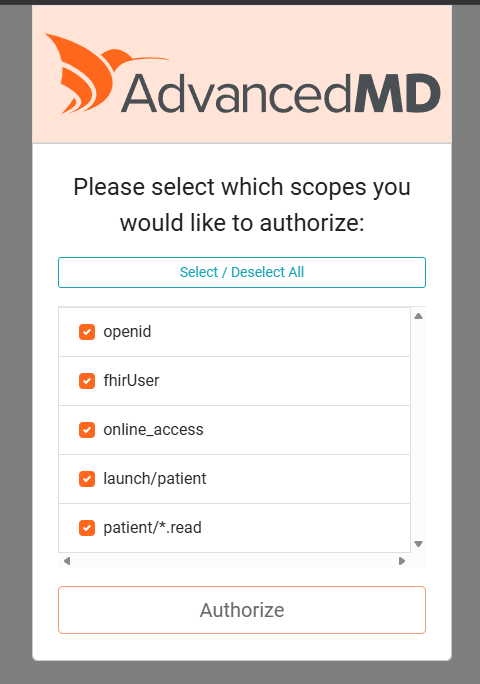
What each permission means
openid- Confirms you signed in successfully.
fhirUser- Tells Talk AI which record is yours so it opens the right account.
online_access- Keeps you signed in while you use Talk AI instead of asking again on every page.
launch/patient- Tells Talk AI which chart is yours.
patient/*.read- Lets Talk AI read your own chart details: your name, email, and who your therapist is. It only reads, never changes anything.
Talk AI never writes to your medical record, and your Talk AI conversations are never sent to AdvancedMD.
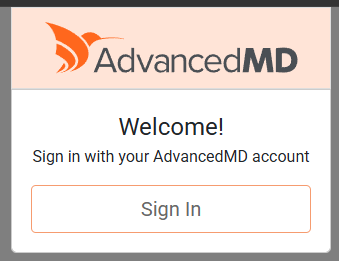
- On the welcome screen, tap Sign In.
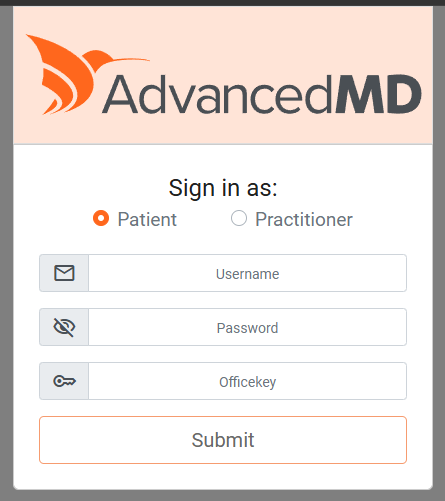
- Choose Patient, then enter your Patient Portal username and password. In the Officekey field, enter 990251.
- Review the authorization screen and tap Agree. That's it. You'll land in
your Talk AI portal.
If something doesn't work
- “Sign-in didn't work” after tapping Agree. Usually the one-time Third Party Access consent above hasn't been given yet. Do it in the Patient Portal, then try again.
- You tapped Deny by mistake. Nothing was shared. Just start again from the sign-in page.
- Wrong office key or password. AdvancedMD will say so on its own screens. Your username and password are the same ones you use for the Patient Portal; if you've forgotten them, use the portal's password reset or contact the practice.
For providers
Providers sign in with their regular AdvancedMD credentials. Along the way AdvancedMD asks you to select a patient. That's how you tell Talk AI which client to open (or add) when you land.
Signing in
- On the sign-in page, tap “I'm a provider.”
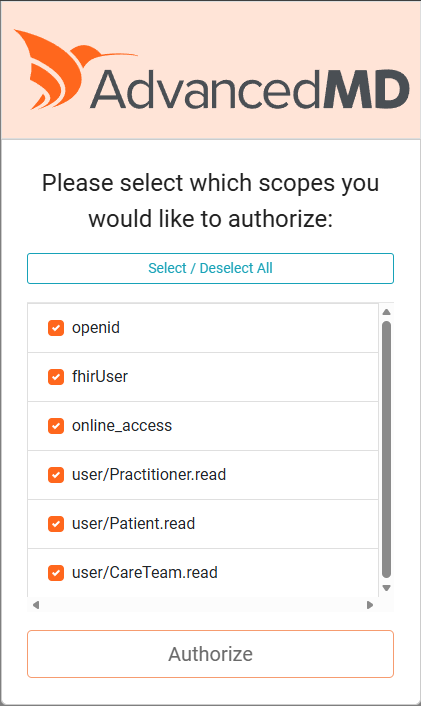
- AdvancedMD asks which permissions to authorize. Leave everything checked and tap Authorize.
What each permission means
openid- Confirms you signed in successfully.
fhirUser- Tells Talk AI which record is yours so it opens the right account.
online_access- Keeps you signed in while you use Talk AI instead of asking again on every page.
user/Practitioner.read- Reads your own provider record for your name.
user/Patient.read- Reads a patient’s name and email when you add a client.
user/CareTeam.read- Reads which therapist is listed on a patient’s care team.
Talk AI never writes to your medical record, and your Talk AI conversations are never sent to AdvancedMD.
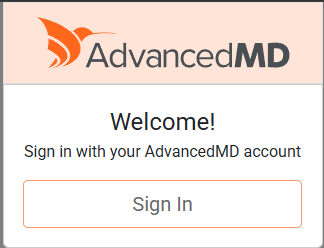
- On the welcome screen, tap Sign In.
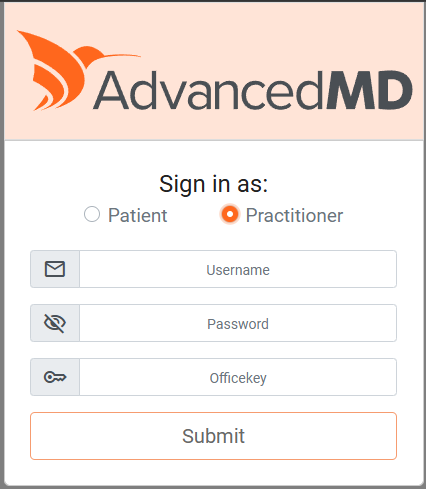
- Choose Practitioner, then enter your AdvancedMD username and password. In the Officekey field, enter 990251.
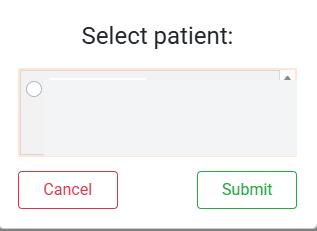
- AdvancedMD requires selecting a patient to finish signing in. Make it useful: search for the client you want to work with. (Any selection works; it
only affects where you land, never what you can access.)
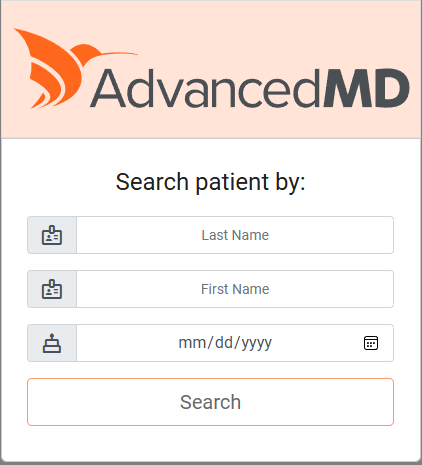
- Select them and tap Submit.
Where you land
- You selected one of your clients. You land on their page.
- You selected a patient who isn't in Talk AI yet. You're offered an Add-client screen: one tap creates their account and adds them to your roster, with everything ready for their own first sign-in.
- You selected another therapist's client. Talk AI won't open them. If the client is genuinely moving to your care, update their provider (Provider Profile | PCP) in AdvancedMD first, or ask an admin.
Your first sign-in: registering your NPI
The first time you sign in, Talk AI asks for your NPI, usually prefilled from the client you selected, so it's one tap. Your NPI is what lets Talk AI keep your client list in sync with AdvancedMD automatically. An admin approves it once; until then no clients can be connected to you, and you'll see a notice on every page.